
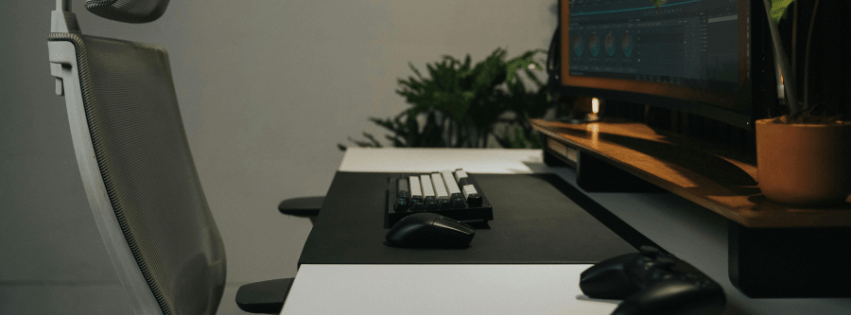
In today’s fast-paced, digitally-driven world, many of us spend long hours sitting at a desk or working on computers. Whether you’re in an office environment or working from home, poor ergonomics can lead to work-related pain and discomfort that, over time, can become more serious. From backaches to wrist pain, these issues can have a significant impact on your overall health and productivity.
Creating an ergonomic workstation can be crucial in preventing pain and promoting long-term well-being. In this blog post, we’ll walk you through the basics of ergonomics and share tips on how to set up your workstation for a healthier, more comfortable workday.
What Is Ergonomics and Why Does It Matter?
Ergonomics is the science of designing and arranging things people use so that the people and things interact most efficiently and safely. In the context of your workstation, good ergonomics means optimizing your workspace to fit your body’s natural movements and postures. The goal is to prevent muscle strain, joint pain, and long-term damage to your body caused by prolonged sitting, poor posture, or repetitive movements. When your workstation is not ergonomically friendly, your body may compensate by adopting unnatural postures, which can lead to discomfort, fatigue, and even musculoskeletal disorders. These conditions include back pain, carpal tunnel syndrome, neck strain, and tendinitis, all of which are commonly linked to poor ergonomic practices.
Key Elements of an Ergonomic Workstation
1. Chair and Posture
Your chair is perhaps the most important part of your workstation. It should support your natural posture, with a backrest that supports the curve of your spine and a seat height that allows your feet to rest flat on the floor. If your feet don’t touch the ground, use a footrest to keep them comfortably supported.
- Seat height: Adjust the height so your knees are at or slightly below your hips.
- Back support: Ensure your chair has lumbar support to maintain the natural curve of your lower back.
- Armrests: Position armrests so that your arms rest comfortably at your sides with your elbows at a 90-degree angle.
- Posture: Sit back in your chair with your back supported and avoid slouching. Keep your shoulders relaxed and avoid leaning forward.
2. Desk and Monitor Setup
Your desk and computer setup should allow you to maintain a neutral body position without straining your neck, back, or eyes.
- Monitor height: The top of your monitor should be at or just below eye level. This helps reduce neck strain by preventing you from looking up or down for extended periods. The monitor should also be about an arm’s length away from your face.
- Keyboard and mouse position: Keep your keyboard and mouse at a height where your arms are at a comfortable 90-degree angle. Your forearms should be parallel to the ground or slightly angled downward. Avoid extending your arms or shoulders to reach your mouse.
- Desk clearance: Keep enough space under your desk so your legs can move freely. Avoid clutter that might force you into awkward postures.
3. Lighting and Screen Position
Proper lighting is essential to prevent eye strain and headaches. Position your workstation so that light doesn’t cause glare on your screen. Ideally, your desk should be positioned perpendicular to windows, or you should use task lighting that doesn’t shine directly on your screen. Adjust the brightness and contrast of your screen to reduce eye fatigue, and take breaks to focus on distant objects or blink frequently to prevent dryness.
4. Breaks and Movement
Sitting for extended periods is one of the biggest culprits behind work-related pain. Even if your workstation is perfectly ergonomic, it’s still important to take breaks and move around regularly.
- The 20-20-20 rule: Every 20 minutes, look at something 20 feet away for at least 20 seconds to give your eyes a break.
- Stand and stretch: Every 30 minutes, stand up, stretch, and walk around for a few minutes. Simple stretches can relieve tension in your back, shoulders, and neck.
- Posture checks: Regularly check your posture and make adjustments. Keep your body relaxed and avoid holding the same position for too long.
5. Adjustments for Remote Workers
If you’re working from home, you might not have an ideal office setup. However, even a simple workstation setup can be improved with a few adjustments:
- Use a laptop stand: If you’re using a laptop, prop it up on a stand to bring the screen to eye level. Use a separate keyboard and mouse to avoid straining your wrists.
- Use pillows for support: If you’re working from a couch or less-than-ideal chair, consider using pillows to improve lumbar support and encourage better posture.
- Create a dedicated workspace: Set up a designated area for work to help you mentally separate work from relaxation, and keep your space tidy to promote focus and comfort.
An ergonomic workstation is essential for reducing work-related pain and maintaining overall health. By making small adjustments to your chair, desk, and monitor position—and by incorporating regular movement and breaks—you can create a workspace that supports your body and boosts your productivity.
This blog post is not designed to replace a full assessment from qualified healthcare professional. If you would like to discuss how sports therapy may be beneficial for you, a current injury, or to book an appointment, contact us.
 HLM Sports Therapy